Shruti ← Home Download
Windows 10 & 11

Installing Shruti on Windows

Shruti is a new app, so Windows asks you to confirm it once. Here's exactly what to click.

Windows shows one of two screens depending on how you downloaded the file. Find the one that matches what you see below — you only need one flow.
Flow 1From your browser's download bar

Use this if you see the file appear at the top-right of your browser.
1
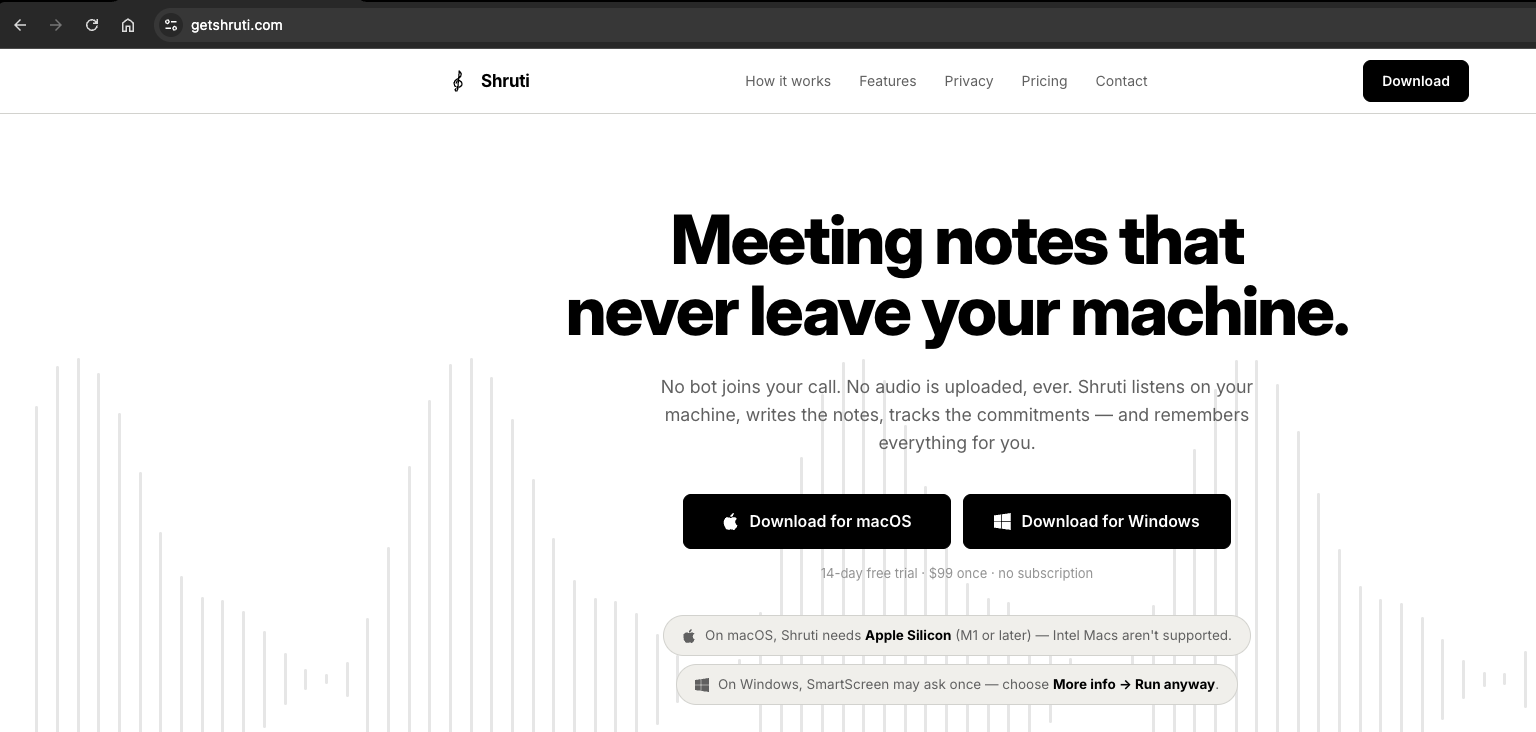
Click Download for Windows on getshruti.com.
Download for Windows button
2
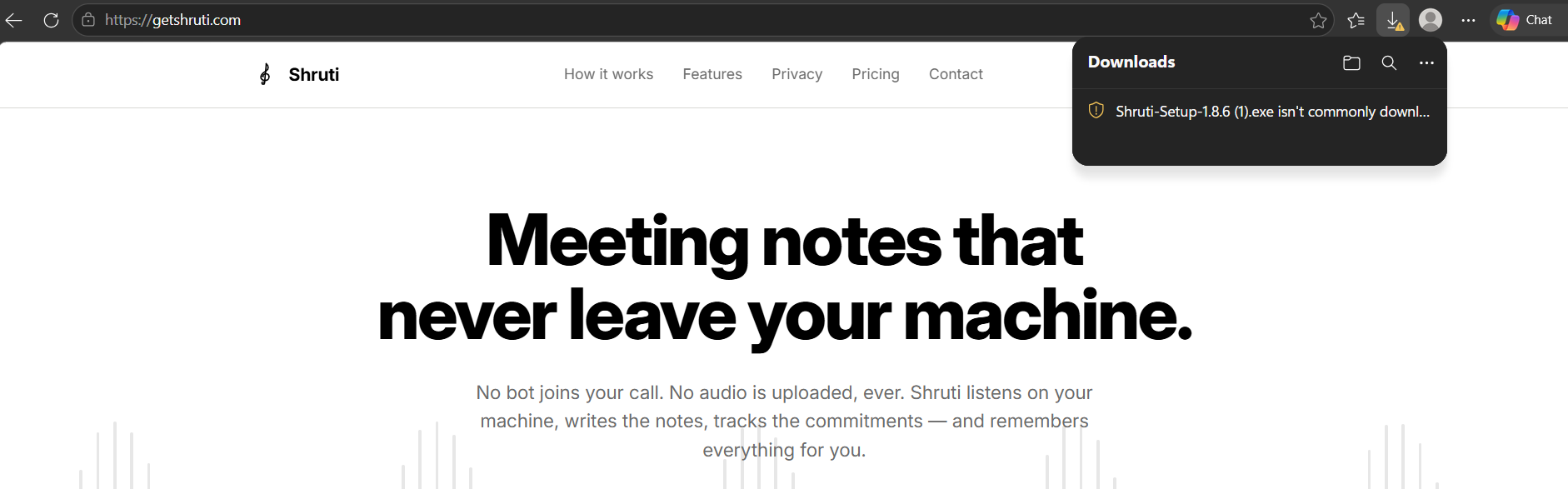
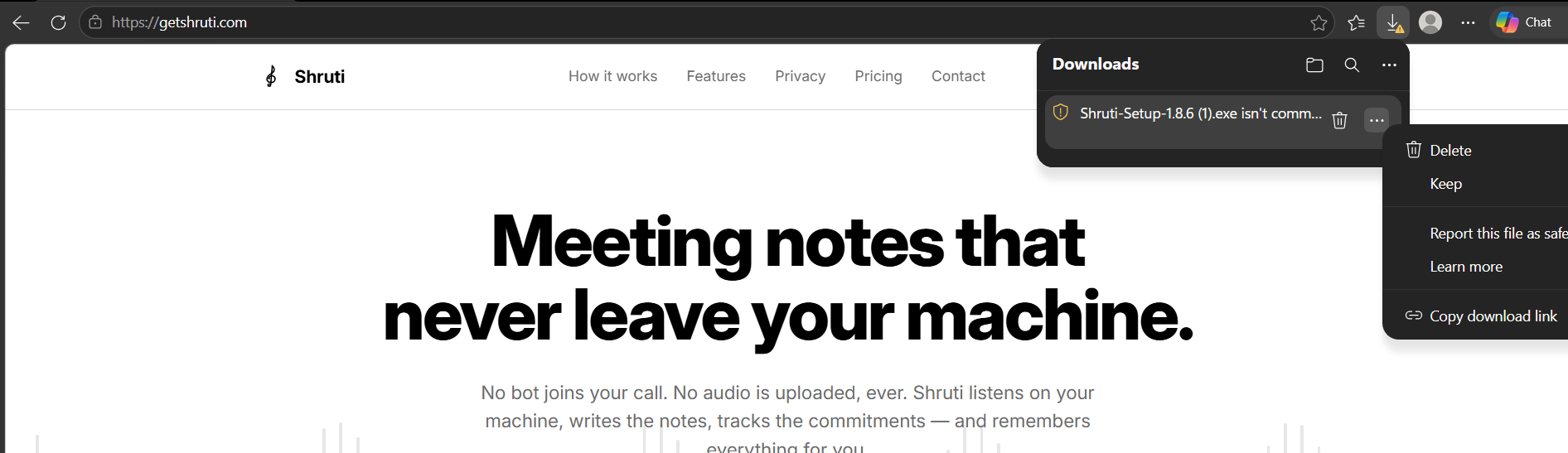
Hover over the file — more options appear next to the trash icon.
Hovering the download to reveal options
3
Click Keep. You can also choose Report this app as safe — it helps Microsoft review Shruti faster.
Click Keep on the download
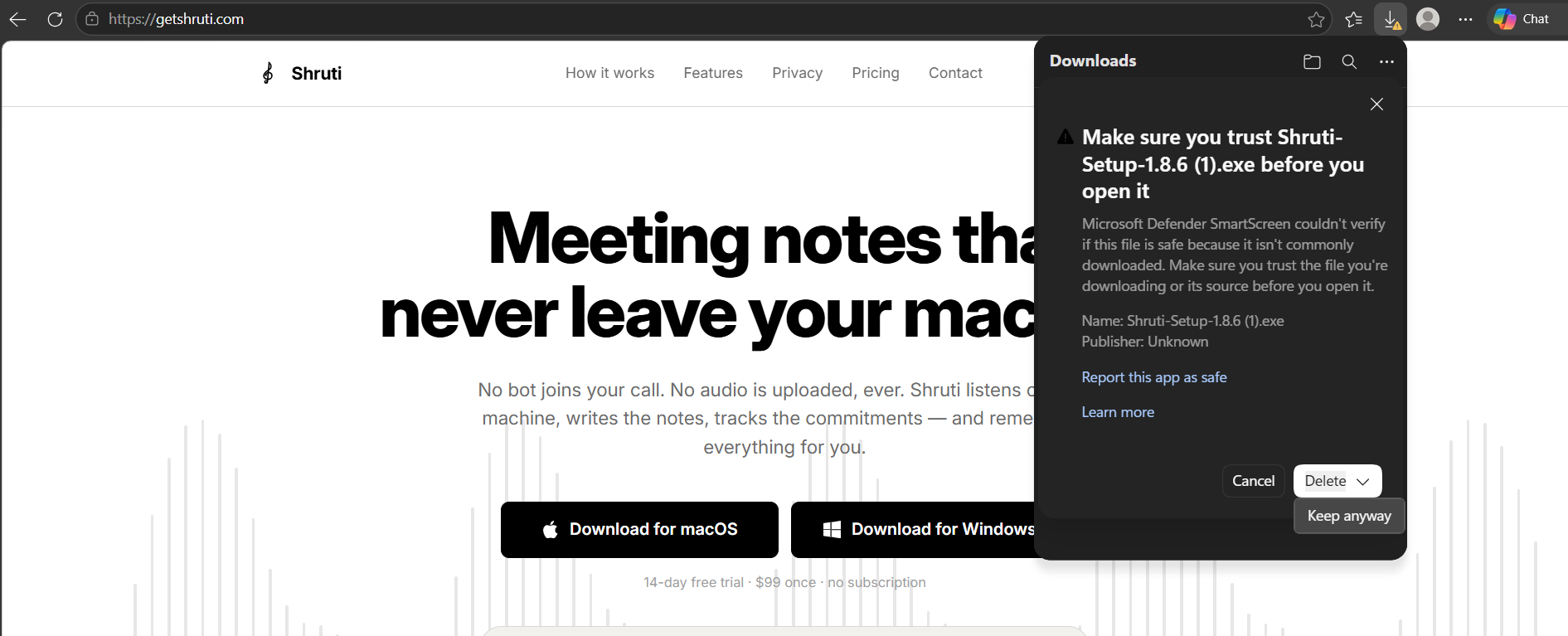
4
If a “Windows protected your PC” pop-up appears, click the More info chevron, then Keep anyway.
Click More info then Keep anyway
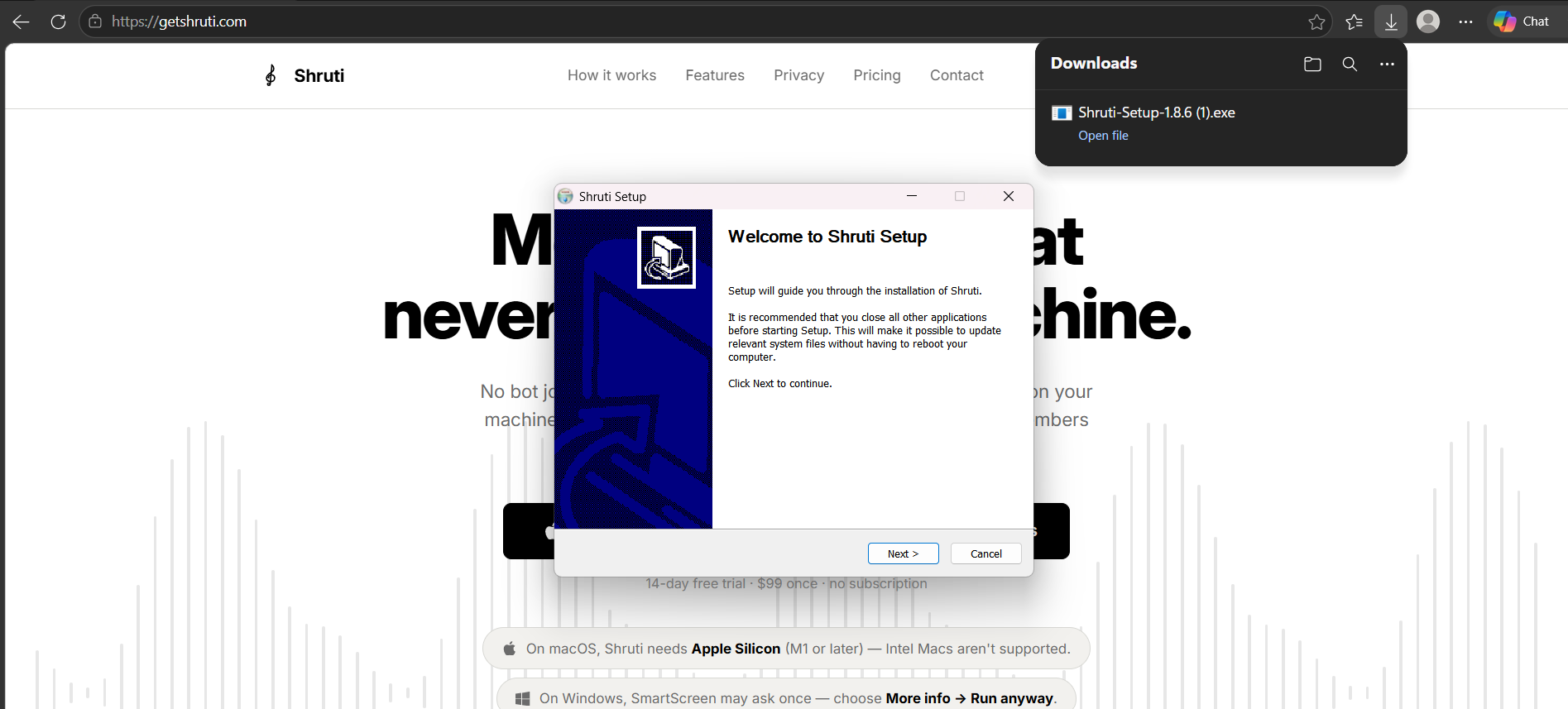
5
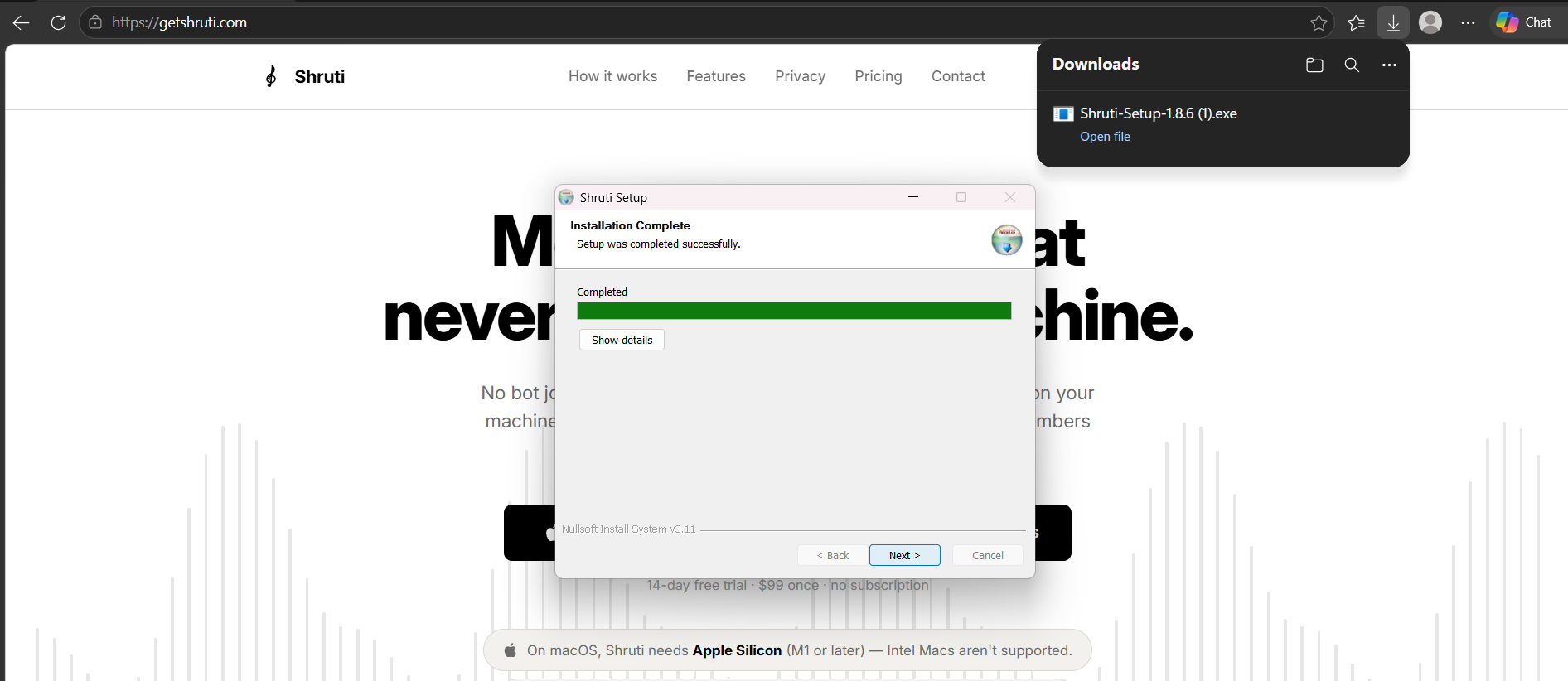
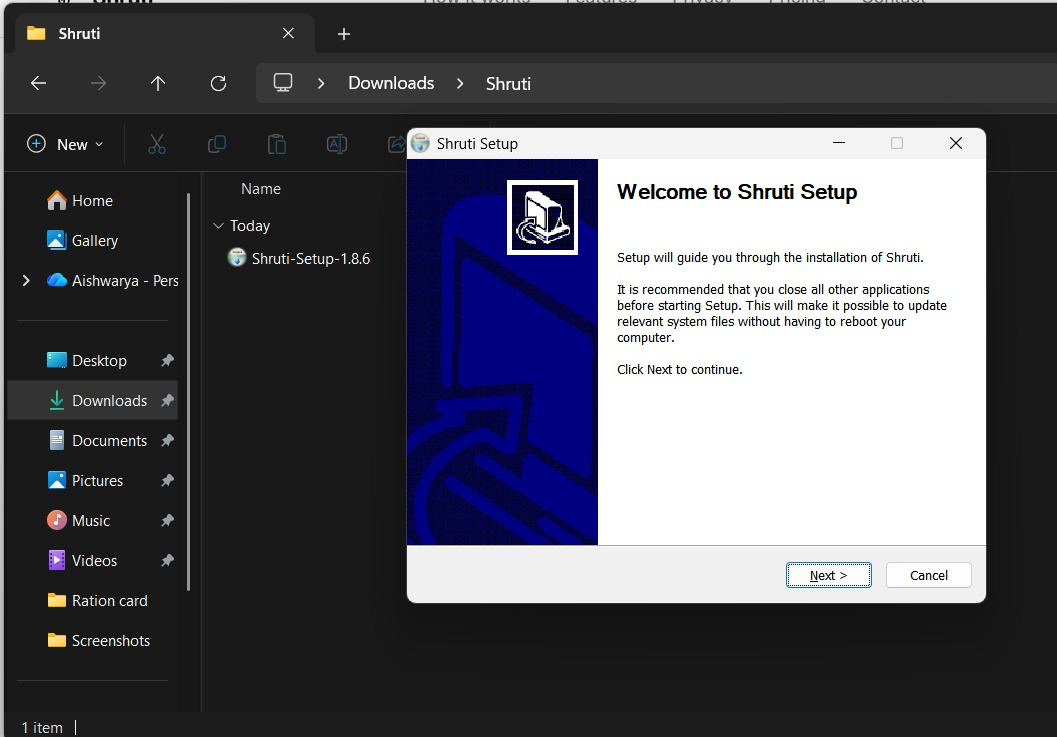
Click Next and follow the on-screen prompts.
Installer — click Next
6
Click Next.
Installer — click Next
7
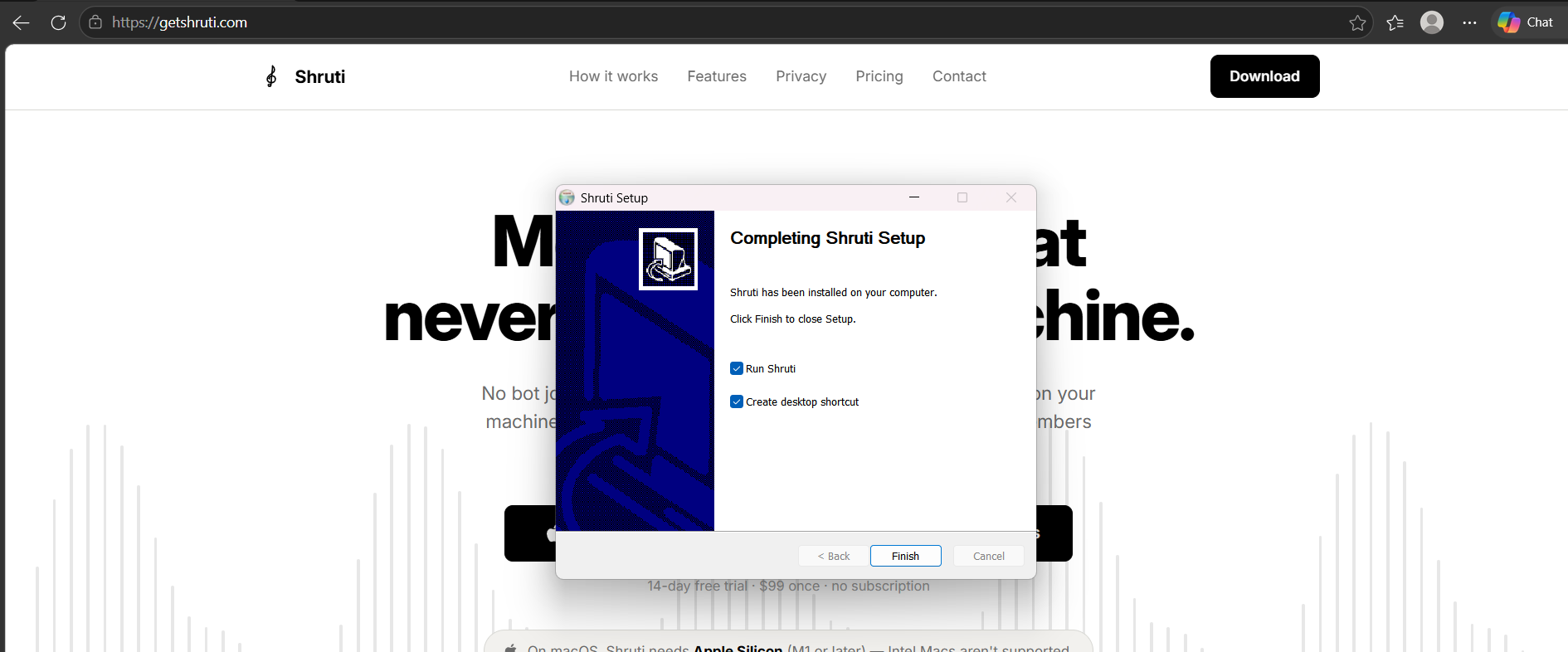
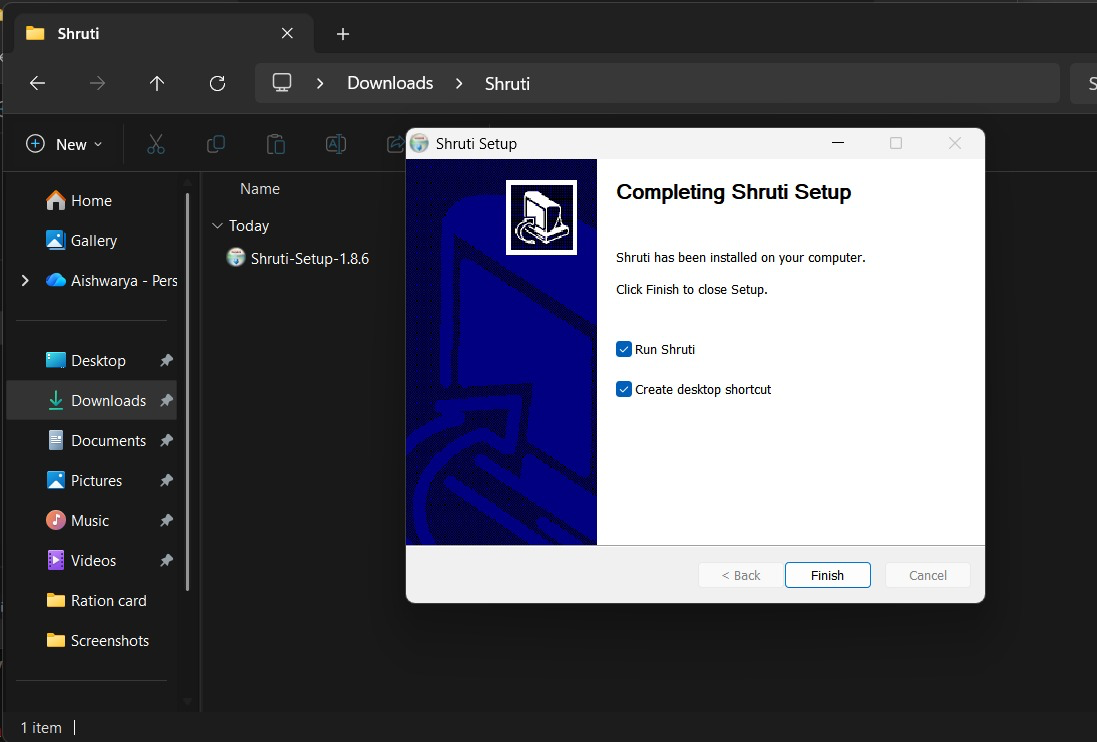
Click Finish.
Installer — click Finish
Flow 2From your Downloads folder

Use this if you've already saved the .exe and Windows is blocking it.
1
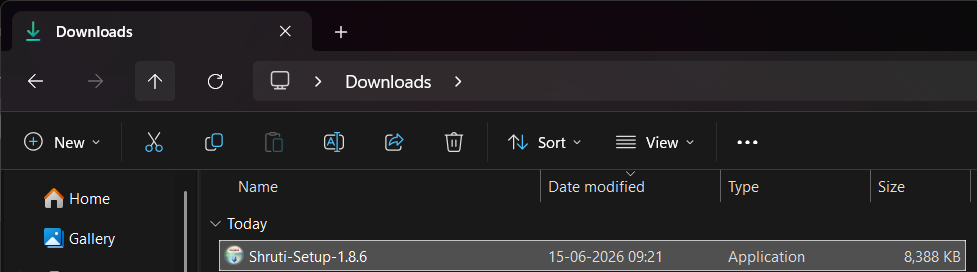
Open your Downloads folder and find the .exe file.
The .exe in the Downloads folder
2
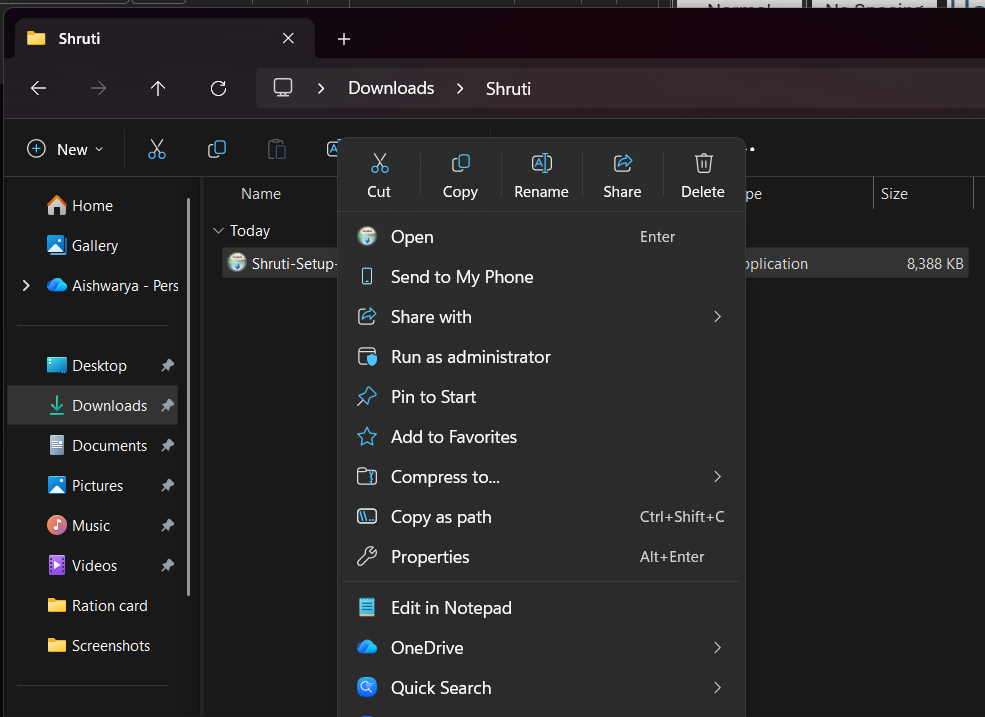
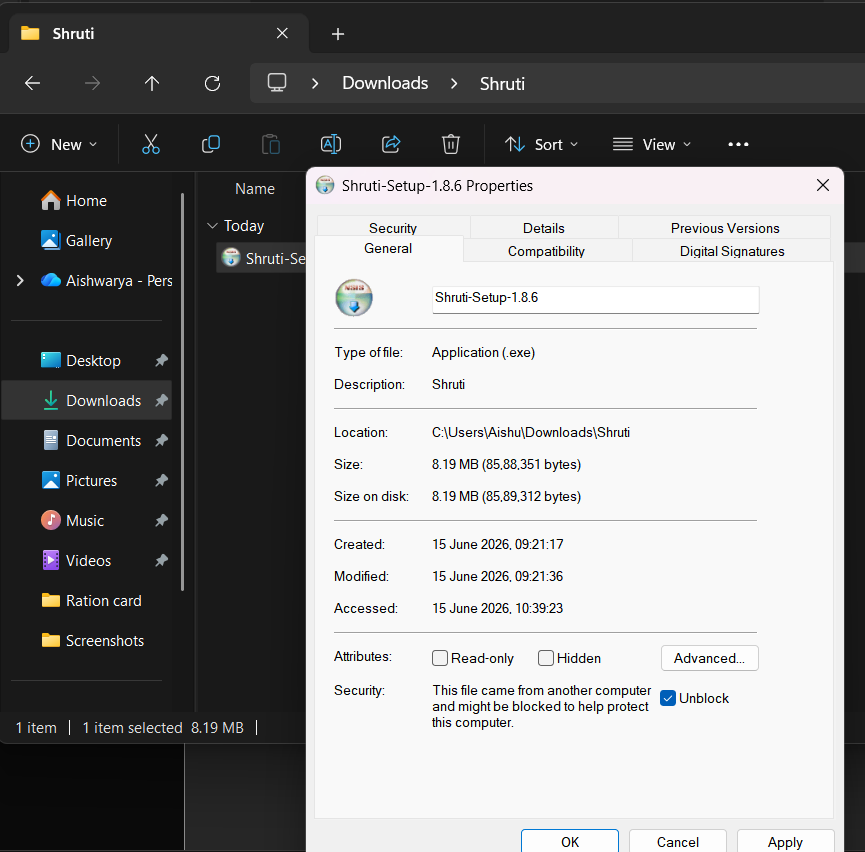
Right-click the .exe and choose Properties.
Right-click the .exe and choose Properties
3
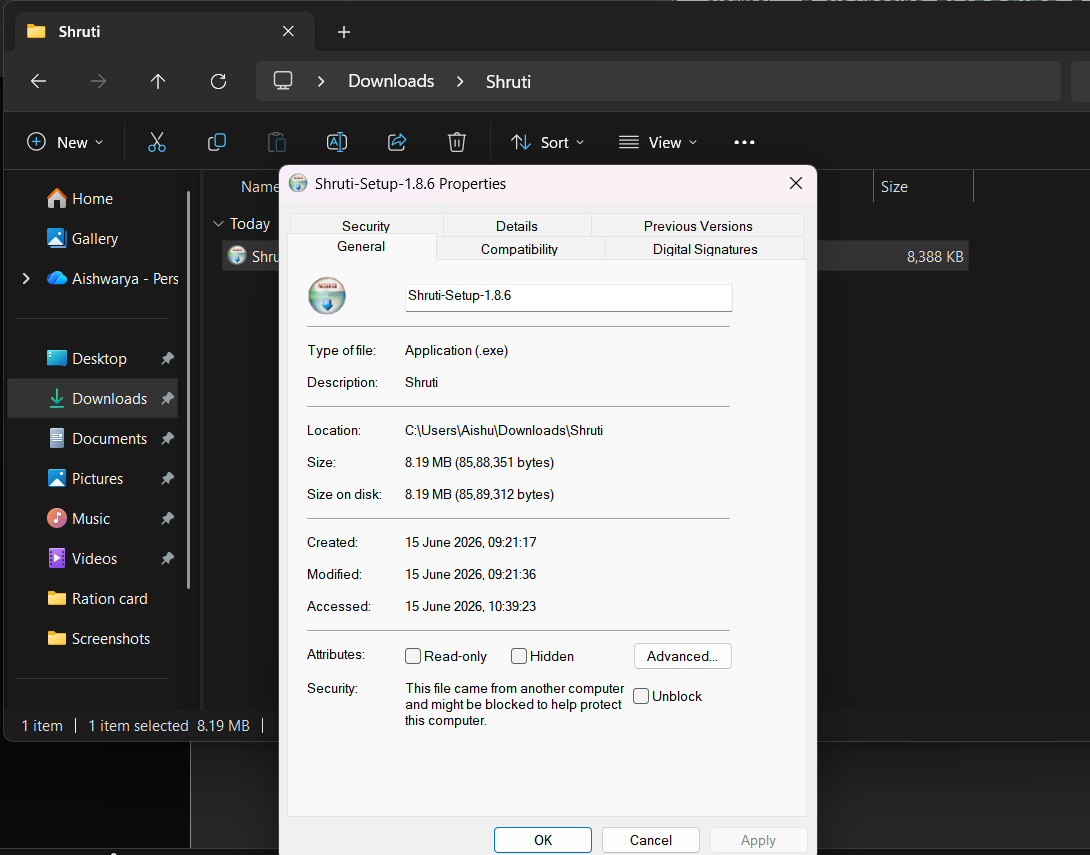
On the General tab, under Security, tick Unblock, then click Apply.
Tick Unblock then Apply
4
Confirm UnblockApply and close the dialog.
Confirm Unblock and Apply
5
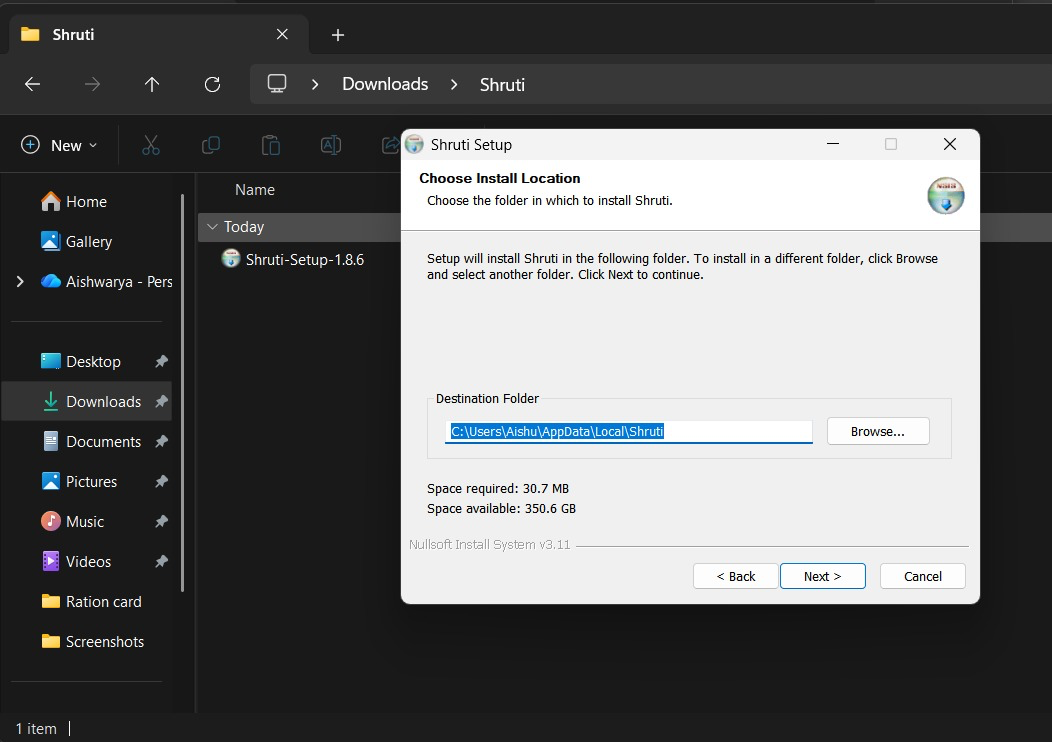
Now run the installer and follow the on-screen prompts.
Run the installer
6
Click Next.
Installer — click Next
7
Click Finish.
Installer — click Finish
8
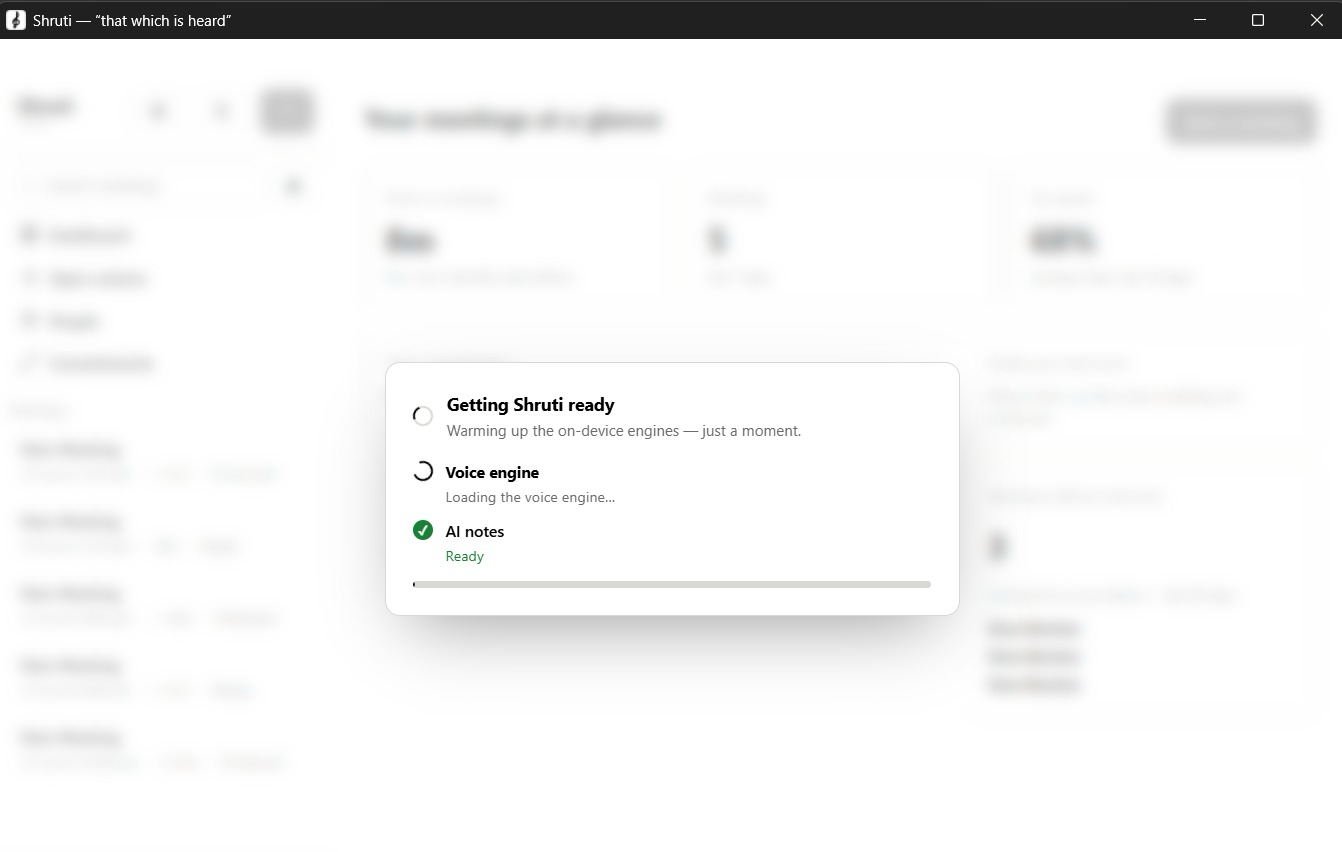
Shruti launches and downloads its prerequisites — a one-time setup. Then you're ready to go.
Shruti first-run downloading prerequisites

All set — you're ready 🎉

Start a meeting and Shruti listens, writes the notes and tracks the commitments — entirely on your PC.

Download for Windows